
Master ASP.NET Core Performance Monitoring: 5 Steps to Integrate Azure Application Insights
Hey there, my tech-savvy pals! Get ready to supercharge your ASP.NET Core app with some hilarious help from Azure Application Insights! 🚀
- azure
- observability
Hey there, my tech-savvy pals! Get ready to supercharge your ASP.NET Core app with some hilarious help from Azure Application Insights! 🚀
Overview
Picture this: your app’s performance is like a rollercoaster ride, and you desperately need to keep tabs on it. That’s where the mighty Application Insights swoops in to save the day!

Getting Started
To get started with integrating Azure Application Insights into your ASP.NET Core application, follow these 5 simple steps:
Step 1: Time to Create Some Azure Magic! 🎩
Head over to the Azure Portal and type in “Application Insights” like you’re casting a spell. Click on “Create,” fill in the wizardry details, and tap “Review + Create.” Voila! Your very own Application Insights instance will appear like magic beans!
Don’t worry about distance; just pick the region closest to your app’s hideout. And if you need a new group to join the adventure, you can create one there too!
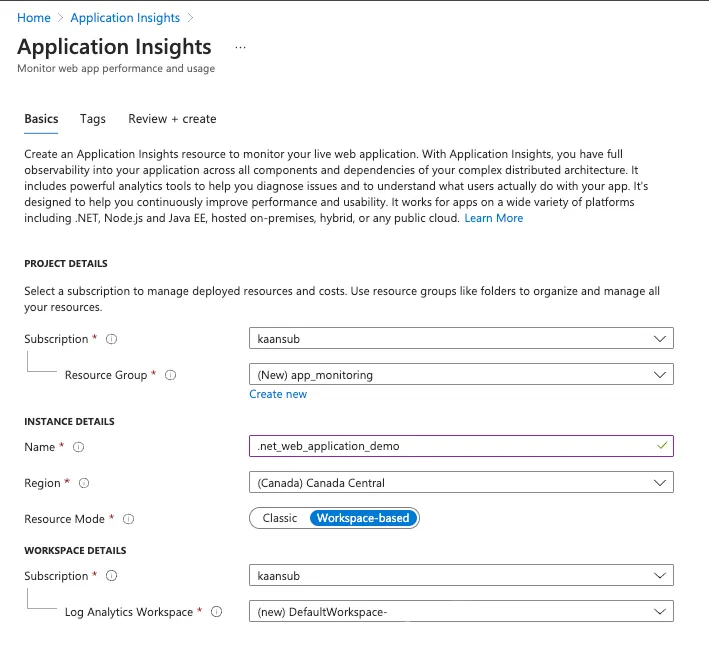
Step 2: Prepare Your ASP.NET Core Superhero Team! 🦸♂️
Open your ASP.NET Core project in Visual Studio, and it’s time to summon the “Microsoft.ApplicationInsights.AspNetCore” Nugget Package! Abracadabra! 🪄
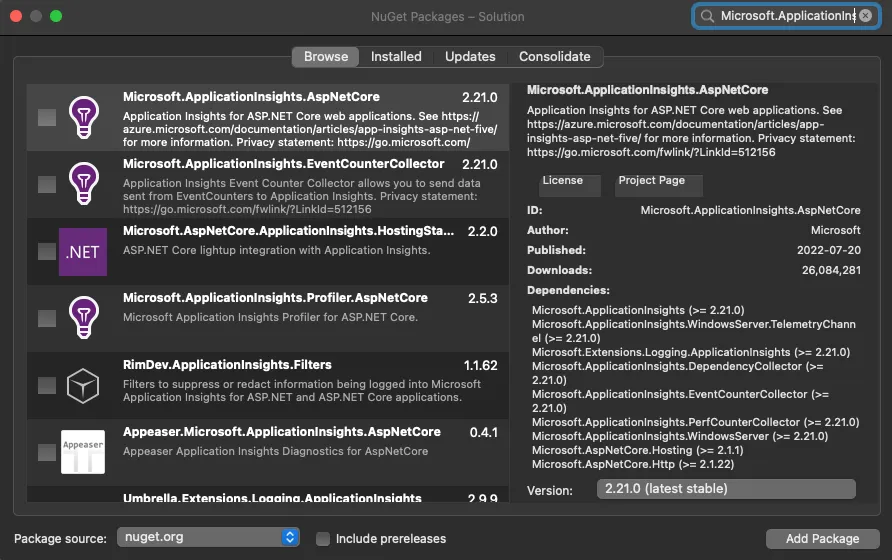
Now, before we dive into the magic, you need some essentials:
- A kickass ASP.NET Core application (if you don’t have one, you can cook up one like the following images or you can follow ASP.NET Core tutorial).
Note: As I’m a Macie , this is for Mac. If you are using Windows please consider the link for it.
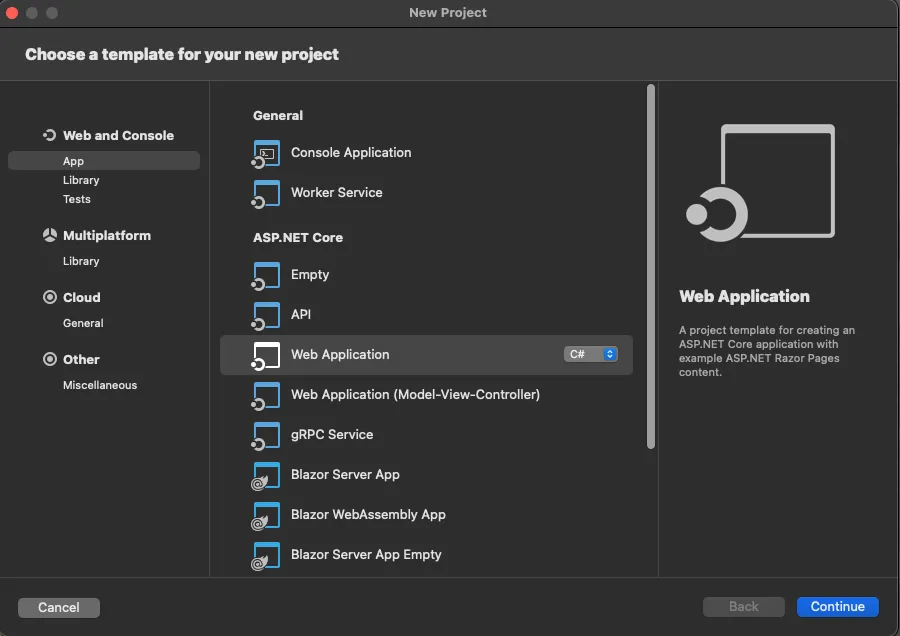
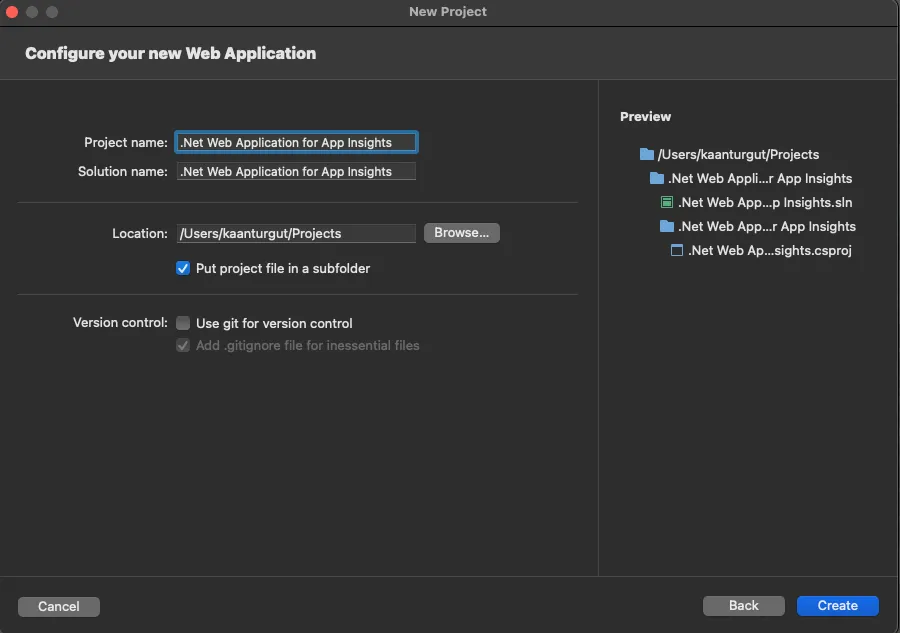
- The Application Insights NuGet package — a friend you can trust!
- A secret Application Insights connection string to send all the juicy info.

Step 3: Enable Application Insights Server-Side Telemetry
Using Visual Studio:
- Open your project in Visual Studio.
- Go to “Project” > “Add Application Insights Telemetry.”
- Select “Azure Application Insights” > “Next.”
- Choose your subscription and existing Application Insights instance or create a new one using “Create new.”
- Add or confirm your Application Insights connection string and select “Finish.”
- After adding Application Insights to your project, ensure you are using the latest stable release of the SDK by going to “Project” > “Manage NuGet Packages” > “Microsoft.ApplicationInsights.AspNetCore.” Update it if needed.
Without Visual Studio:
- Install the Application Insights SDK NuGet package for ASP.NET Core. Use the latest stable version for optimal performance.
- In your project’s .csproj file, add the following code under
<ItemGroup>:
<PackageReference Include="Microsoft.ApplicationInsights.AspNetCore" Version="2.21.0" />- Prepare for the grand finale! Add this epic line to your startup.cs or program.cs class (you decide, magician!): For ASP.NET Core 6 and later:
var builder = WebApplication.CreateBuilder(args);
builder.Services.AddApplicationInsightsTelemetry();
builder.Services.AddMvc();
var app = builder.Build();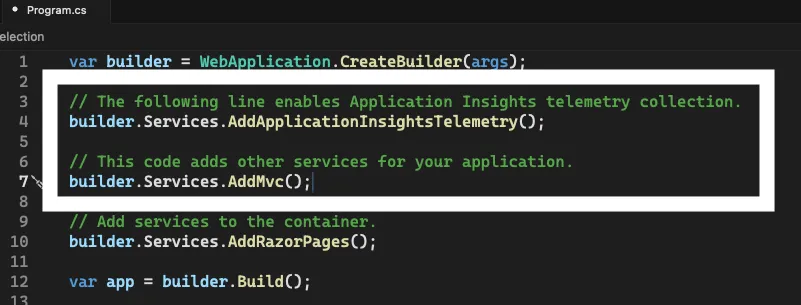
Step 4: Time to Get Charmed with the Connection String! 🔮
Unlock the secret door by adding the connection string. You have two choices, just like choosing between two different spellbooks:
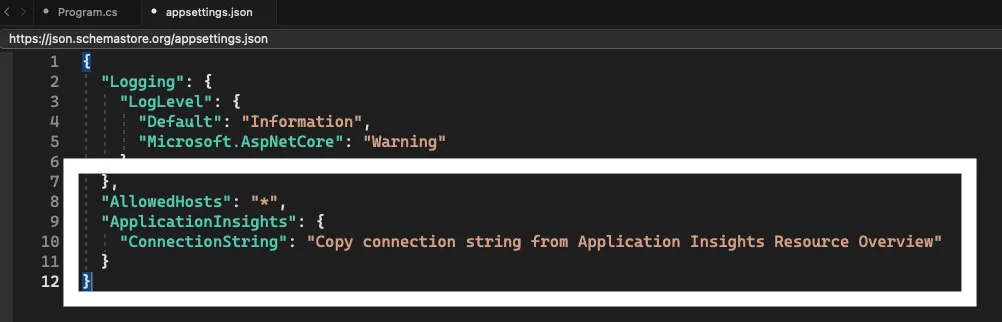
Option 1: Specify the connection string in the “appsettings.json” configuration file:
{
  "Logging": {
    "LogLevel": {
      "Default": "Information",
      "Microsoft.AspNetCore": "Warning"
    }
  },
  "AllowedHosts": "*",
  "ApplicationInsights": {
    "ConnectionString": "Copy connection string from Application Insights Resource Overview"
  }
}
Option 2: The Environment Variable Spellbook (For Advanced Wizards!):
You got the knack! Just set the “APPLICATIONINSIGHTS_CONNECTION_STRING” environment variable or “ApplicationInsights:ConnectionString” in the JSON configuration file.
Step 5: The Grand Finale! 🎉
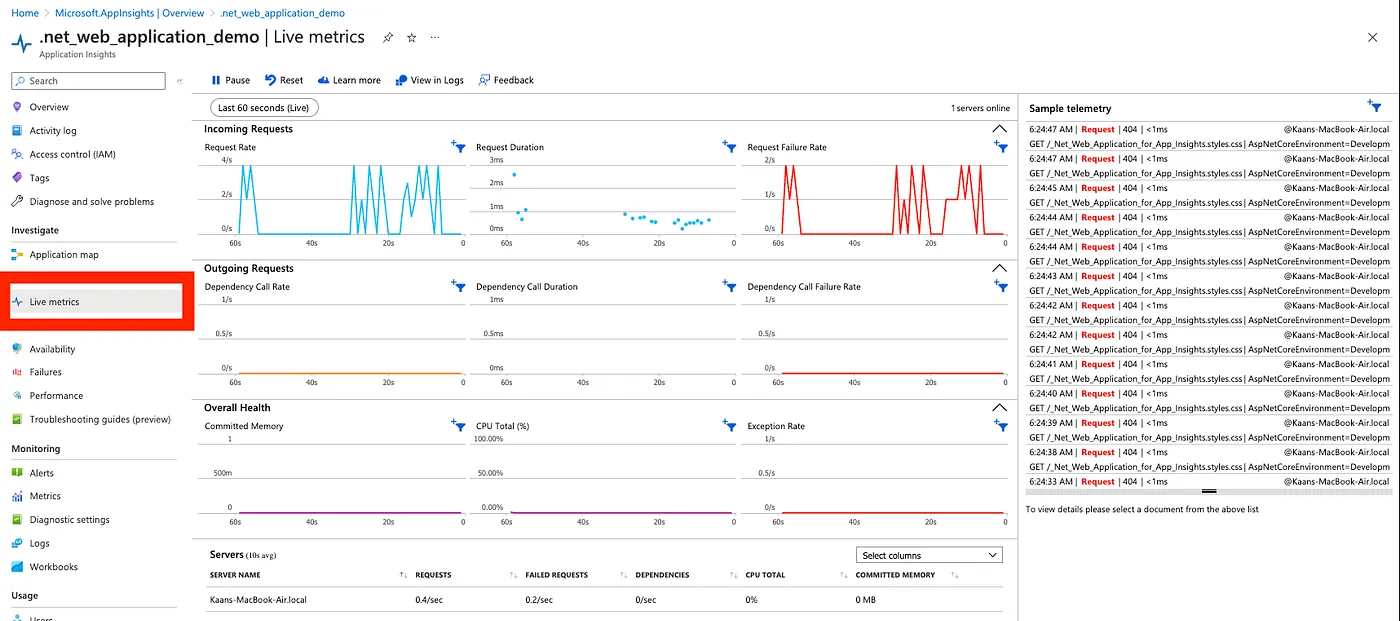
With the connection string in place, your setup is complete! Now you can run your application and explore logs and live metrics in the Azure Portal.

Monitoring Your Application
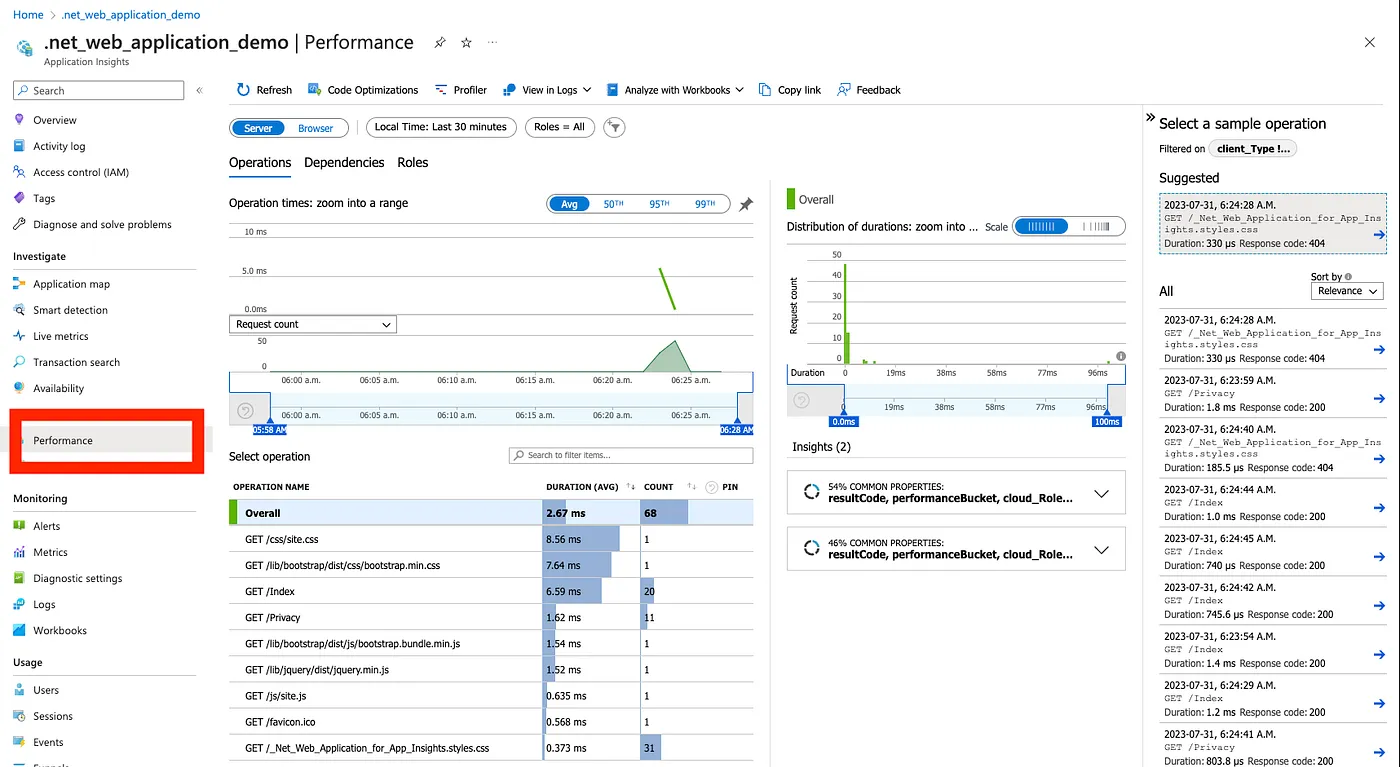
Zoom in on the live tracking and performance monitoring features — watch your app dance like nobody’s watching!
Live Metrics
Performance
Enjoy the journey of monitoring and optimizing your ASP.NET Core application with Azure Application Insights! If you encounter any issues or have questions, feel free to make a comment!
For more mischief and witty wizardry, hop over to the official Microsoft documentation! Embrace the fun, and happy monitoring! 🧙♀️🤩